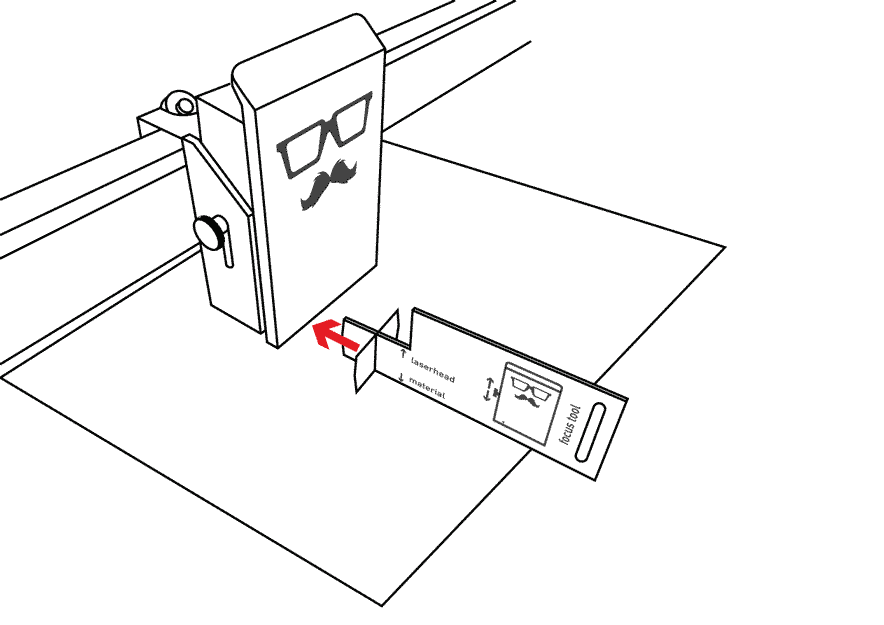
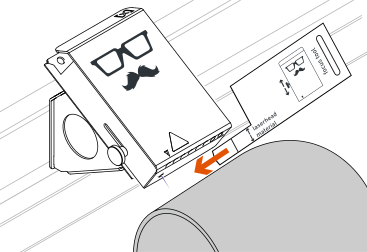
Set the height at which you want to laser so that the camera preview is accurate. For more detailed information, including cutting aids and the Mr Beam Height Extension, see
this Knowledge Base article
regarding the working height.
Drag an item to move, select it to change stroke or fill.
Hold CTRL or CMD to select multiple items.
Select a node to adjust shape.
Hold CTRL or CMD to select multiple nodes.
Draw directly on the working area.
Double-click to finish a path.
Draw directly on the working area.
Double-click to finish and close a path.
Press Enter to finish the current path or Delete/Backspace to remove the last segment
Draw directly on the working area.
Double-click to finish a path.
Vector combinations
The current selection could not be combined.
Material
(customized)
In rotary mode the movement speed is limited. Job parameters are adjusted for best results. Custom materials need your adjustment.
Reminder: Never remove any components while your Mr Beam is switched on! To make sure your Mr Beam is turned off, take out the key and unplug the power supply.
Quick Outline
QuickExtract
Original Image
Auto-white-normalized
Input
Automatically removes paper background and measures pen bleed/sharpness.
Foreground shapes are detected with 8-connected pixels. Touching objects form one shape; use Engrave or Vector to override every automatic suggestion.